

Paste a paragraph into the wrong field and it can arrive wearing the wrong font, the wrong spacing, and a hyperlink you never asked for. Pasted text is rarely “just text”; it often brings a little cargo with it.
Most people notice the mess only after the damage is done. The document looks odd, the bullet list jumps sideways, and the clean draft suddenly carries a hidden style from some other app.
Clipboard data is slippery. It can hold plain characters, rich formatting, links, paragraph breaks, bullets, tables, and the odd invisible character that came from a PDF or a web page with a messy structure. If you write, edit, publish, or just move notes between apps, that matters a lot.
Once you understand what travels with a paste, you stop treating it like a random shortcut. You start choosing whether to keep the formatting, strip it, or rebuild it on purpose — and that is where the cleanup time disappears.
What Pasted Text Brings Along for the Ride
The clipboard remembers more than words. It can carry the visible characters, sure, but it often keeps the styling attached to those characters too: font name, size, weight, color, paragraph spacing, list structure, and sometimes a link target.
That is why a paragraph copied from one app can show up in another with a stubborn identity crisis. The destination editor tries to guess what you meant. Sometimes it merges the styles. Sometimes it preserves the source. Sometimes it does both badly.
What the clipboard usually remembers
A copy action may store several versions of the same content at once.
- Plain text, which is just the characters with no formatting at all.
- Rich text, which includes bold, italics, font size, paragraph style, and other visual details.
- HTML, which web editors often use to rebuild links, headings, or lists.
- RTF, or rich text format, which many desktop apps still understand.
- Invisible characters, like non-breaking spaces, tabs, and hard returns that you cannot spot at a glance.
That mix is why pasted text can act clean in one app and chaotic in another. The source app may think in paragraphs and spans. The destination app may think in blocks and styles. They are not always speaking the same dialect.
The nasty part is that you rarely see it.
Why invisible characters matter
A pasted paragraph can look fine and still behave badly. A non-breaking space can block a line from wrapping where you expect it to. A hard return can split one paragraph into two. A copied list can carry tabs that make bullets sit too far left or too far right.
I’ve seen people chase a “mystery formatting problem” for ten minutes when the real issue was a single odd character from a web page. That is not a glamorous fix, but it is usually the correct one.
If you move text around a lot, start thinking like a mechanic. The visible copy is the bodywork. The hidden characters are the bolts.
Why One Paste Can Ruin a Clean Layout
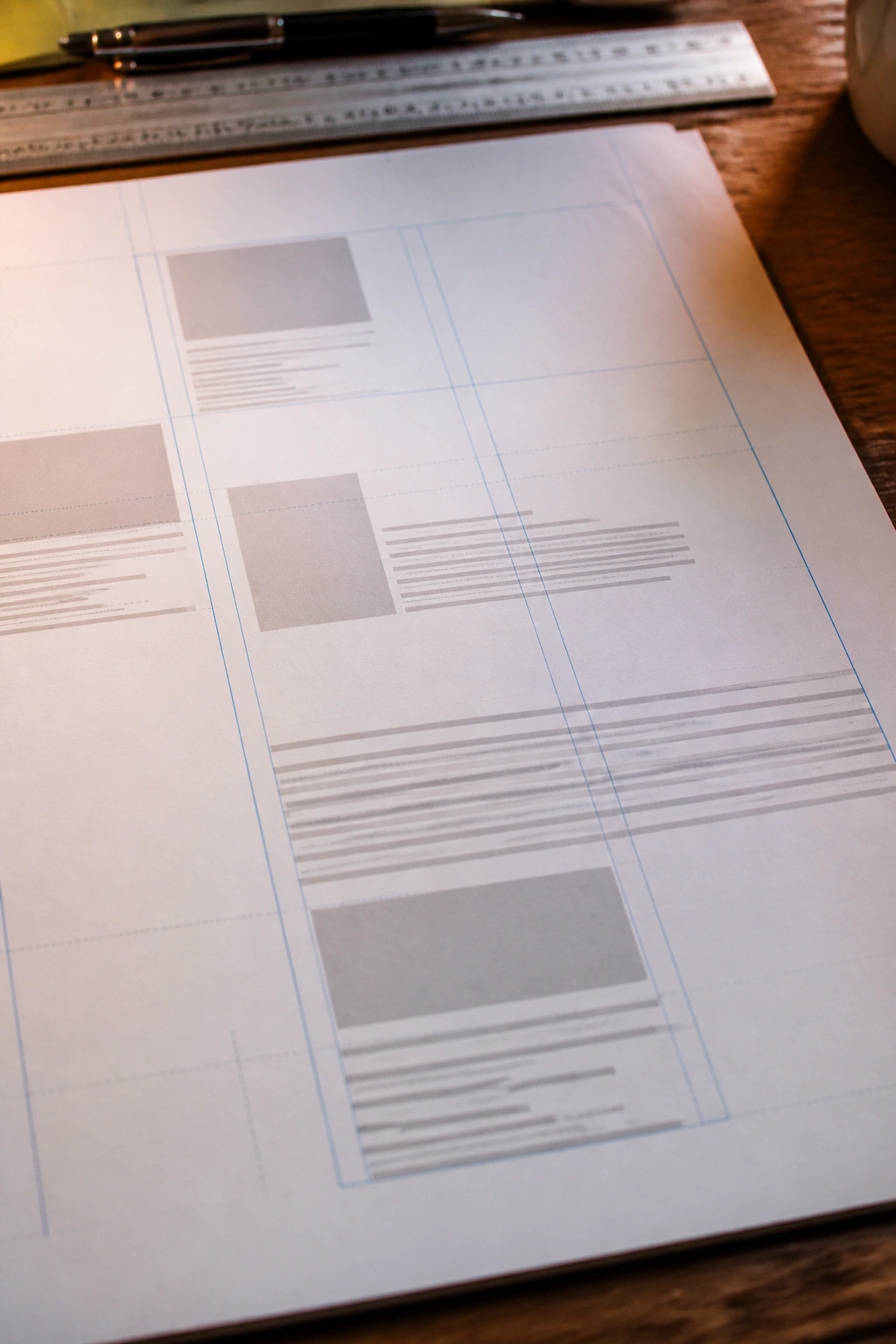
Why does one pasted paragraph throw off an entire page? Because text editors do not just drop letters onto the screen. They also negotiate margins, line spacing, heading styles, indentation, and list formatting behind the scenes.
A clean layout is fragile in a plain, annoying way. One copy from a presentation slide, a PDF, or a styled email can bring a different rhythm with it. Suddenly one paragraph has more space above it than the rest, or a heading comes in at 14 points when the document uses 12, and the whole page starts to feel off.
Spacing is the villain.
A lot of people assume font mismatch is the main problem. It’s not. Line spacing and paragraph spacing do more damage, because the eye picks up rhythm before it notices details. A stray bold word is one thing. A pasted line that creates a visible gap in the middle of a clean page is another.
The quiet ways layouts get broken
- Paragraph spacing from the source can override the destination’s spacing rules.
- List indentation can carry over and create bullets that sit in the wrong column.
- Heading styles can paste with margins that make them look oversized.
- Inline formatting can survive inside a sentence and leave one word looking out of place.
- Tables can force fixed widths that don’t fit the new layout.
A single pasted bullet can drag its whole family with it. That means the second and third bullets inherit the same odd indent, and now you are fixing a list instead of a line.
And here’s the part people miss: the problem often shows up later, not immediately. A document may look fine on your screen and then break after export, after sharing, or after someone opens it in a different editor.
Plain Text or Rich Text: Choosing the Right Paste
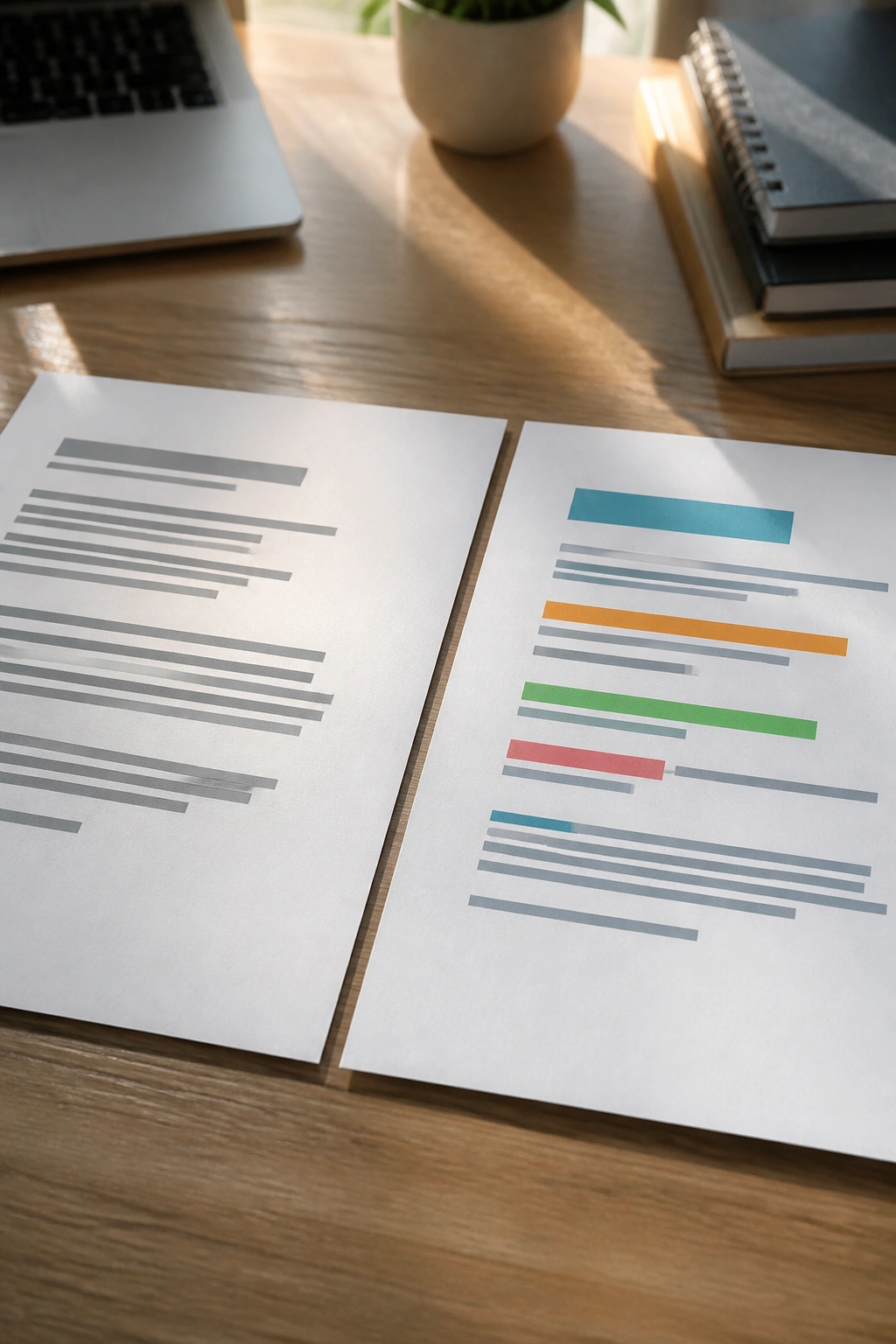
Plain text is boring. That’s the point.
If you strip all the styling away, you get the words and nothing else. No font baggage, no accidental colors, no surprise indents, no hidden links hiding inside a sentence that looked harmless. For drafting, importing notes, or moving copy into a content system, that is usually the safer move.
Rich text has its place too. If the formatting carries meaning — a quote, a code sample, a table, a numbered list, a legal disclaimer with labeled sections — stripping everything bare can destroy the structure you need.
When plain text wins
Use plain text when the shape of the source does not matter.
- Drafting new copy in a clean editor.
- Moving notes from email into a document.
- Pasting into a CMS field that already has site styles.
- Copying from a web page where you only want the words.
- Pulling raw text into a spreadsheet cell or form field.
Plain text is also the safer choice when you are writing something that will be styled later. Headings, pull quotes, captions, and callouts should usually be formatted after the paste, not before it.
When rich text earns its keep
Keep the source formatting when the form is part of the message.
A quote block should still look like a quote block. A code snippet should keep its indentation. A table with aligned columns should stay aligned. If you are copying a recipe, a legal notice, or a technical note where spacing means something, rich text can save you from rebuilding the structure by hand.
The rule I trust is simple: if the formatting helps the reader understand the content, keep it. If the formatting just came along for the ride, strip it.
How to Strip Formatting Without Re-typing a Thing
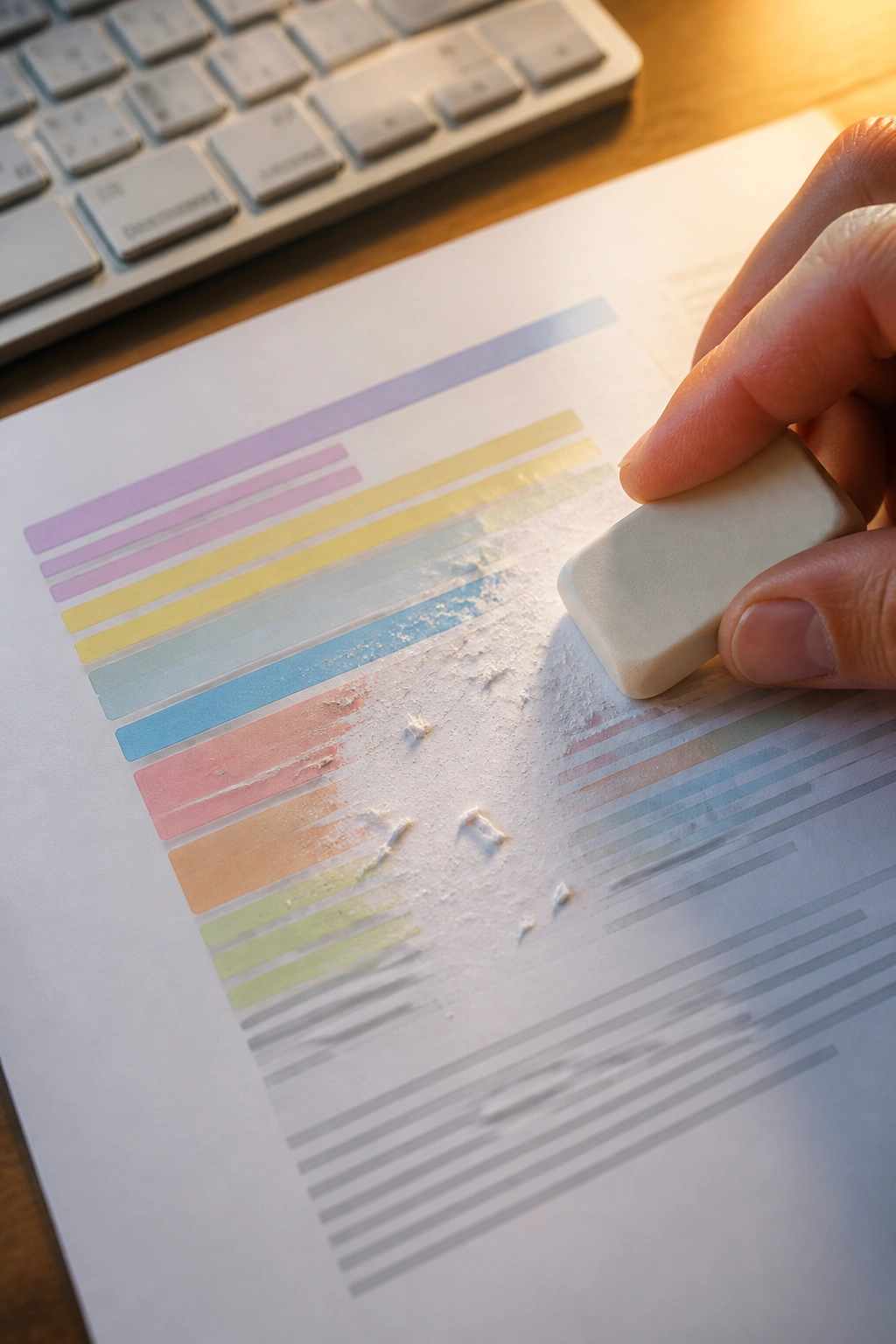
You do not need to retype a whole paragraph just because it pasted badly. Most apps give you at least one clean way to remove formatting, and usually more than one.
Paste options vary, but the names are predictable. Look for paste without formatting, paste and match style, keep text only, or paste special. Many apps also support a shortcut such as Ctrl+Shift+V on Windows or Option+Shift+Command+V on Mac, though the exact key combo changes by app.
A plain-text scratchpad helps too. If you paste messy source text into a basic note app or text editor first, then copy it again, you often strip away the styling in one pass. It feels almost too simple. It isn’t.
The cleanup methods that actually save time
- Paste without formatting if the app offers it.
- Use Paste Special and choose unformatted text or plain text.
- Paste into a text-only editor first, then copy it back out.
- Clear formatting after the paste if the app has that button.
- Apply styles after the paste, not before.
- Rebuild links, headings, and lists manually when structure matters.
A lot of people clear formatting too late. They spend five minutes trying to adjust the broken styling piece by piece, when one plain-text paste would have avoided the whole mess.
Bold warning: Clear formatting is not the same as deleting content. If you use the wrong menu option, you may erase the words instead of the styles. Check the command before you click it.
One more thing. If the paste came from a PDF, do not trust it blindly. PDFs love to hide weird spacing, broken lines, and odd character substitutions. They look polished on the surface and messy underneath.
When Keeping the Original Formatting Makes Sense
Not every paste should be sterilized.
If the formatting carries meaning, stripping it can create new problems. A blockquote without indentation looks like ordinary prose. A code block without spacing becomes unreadable. A table pasted as one long sentence is no longer a table at all.
Quotes and citations
Quoted material should stay visibly separate from your own text. That can mean blockquote styling, italics, or a clearly labeled citation format. If you flatten the quote into normal body text, readers can lose track of where your voice ends and the source begins.
This matters in long-form writing, but it matters even more in documents where source accuracy counts. A pasted quote should remain obviously quoted.
Code and structured text
Code samples are fragile. One extra space can change meaning. One missing line break can break the whole thing. If you are pasting code, configuration text, or anything that relies on indentation, preserve the structure exactly.
A code sample is not prose.
Tables, labels, and branded copy
Tables usually need their original alignment. So do forms, product specs, schedules, and anything that pairs labels with values. In branded copy, too much stripping can remove intended emphasis or hierarchy. If a heading, subheading, or callout was designed to guide the reader, keep that structure and make it fit the destination instead of flattening it.
There is a middle ground here, and it is worth using. Keep the structure that helps, lose the styling that distracts.
Why Word Processors Handle the Same Paste Differently

Paste the same paragraph into Word, Google Docs, Notion, and an email draft, and you may get four different outcomes. Each app has its own rules, its own style engine, and its own idea of what “helpful” means.
That is why a paste can look fine in one place and weird in another. One app preserves the source. Another tries to match the destination. A third invents a hybrid that seems clever until you scroll down the page.
The behavior is not random, even if it feels that way. Each editor is trying to protect its own formatting system.
Common paste behaviors you’ll run into
- Keep source formatting, which preserves the pasted style as closely as possible.
- Match destination formatting, which tries to make the pasted text look like everything else.
- Merge formatting, which blends the two and sometimes creates odd leftovers.
- Convert content into local styles, which can make one pasted block behave differently from the rest of the document.
Desktop word processors tend to be more style-heavy. Browser-based editors often lean on HTML and block formatting. Note apps can be minimalist in one area and fussy in another. Email clients are their own beast entirely, because they have to survive dozens of sending systems and still look decent.
That means the exact same paste can behave differently across apps you use every day. It also means you should not assume your favorite editor is “broken” just because it treats pasted text differently from the one next to it.
Pasted Text in Websites, CMS Editors, and Markdown Fields
Website editors are where sloppy paste jobs become public.
A paste into a CMS or WYSIWYG editor can drag in inline styles, unnecessary spans, odd classes, empty paragraphs, and weird list markup from Word or a browser. You may only see the text on screen, but the HTML underneath can turn into a pile of clutter that is painful to edit later.
That clutter matters for maintenance more than for vanity. Messy markup is harder to update, harder to reuse, and easier to break when another editor touches the page. Clean HTML is not magic, but it does make life calmer.
What to look for in web editors
- Inline font styles that should have been handled by the site theme.
- Broken heading levels where pasted text looks like a heading but is still body text.
- Extra blank paragraphs created by copied line breaks.
- Odd bullet structures where a list is really a stack of separate paragraphs.
- Hidden links or spans that came over from the source.
Markdown fields have their own traps. A pasted list can turn into the wrong bullet syntax. Extra blank lines can split a paragraph where you wanted continuity. Indentation can flip text into a code block. If you write in Markdown, spacing is not decoration; it is part of the language.
I check pasted text in web tools the same way every time: first the visual preview, then the underlying structure if the editor gives me access to it. If you edit web copy, inspect the source sometimes. It is boring. It also saves embarrassment.
Search engines do not reward clean paste work on its own, but messy markup can still hurt the page people see. Broken headings, missing lists, and garbled spacing make the content harder to read, and readers leave fast when the page feels sloppy.
Why Accessibility Depends on Clean Structure

Screen readers do not care that a paragraph looks bold.
They care about the structure underneath: headings, lists, links, quotes, and paragraph breaks. If you paste a block of text and use bold or bigger font size to fake a heading, the visual cue may help sighted readers, but it does nothing for assistive tools.
That is where pasted text quietly becomes an accessibility issue. A copy from a brochure, a PDF, or a design mockup may look polished while carrying no real structure at all. The reader sees order. The software sees a wall.
Clean structure helps in three ways
First, it gives screen-reader users a map. They can jump between headings, skip a list, or move through sections without hearing every line in a flat stream.
Second, it makes mobile reading easier. Long, unbroken blocks are hard to scan on a small screen, and pasted formatting can make them worse by stacking line breaks in odd places.
Third, it keeps links readable. A pasted URL buried in a sentence is not as useful as descriptive link text. If the clipboard pulled over a raw web address, clean it up before publishing.
Visual style is not structure.
If you want the page to work for more people, apply real headings, real lists, and real paragraph breaks after the paste. Do not fake them with bold text and hope no one notices. Someone always notices.
Common Pasted-Text Mistakes That Waste Time
PDFs. Emails. Spreadsheets. Those are the usual suspects.
The trouble is not that they are evil sources. The trouble is that each one carries its own habits. A PDF often preserves layout at the cost of clean text flow. Email can bring in quote bars and odd line breaks. Spreadsheets love tab stops and cells that do not belong in prose.
- Pasting from PDFs can introduce broken line breaks, hyphenated words stuck together, and strange character substitutions.
- Copying from spreadsheets can turn rows into tabbed text or one long run with separators that make no sense outside the grid.
- Dragging text from web pages often preserves hidden links, spans, and inline styles.
- Pasting over tracked changes can create a mix of old edits and new edits that is hard to untangle.
- Relying on visual bold instead of real headings leaves the structure weak and the page harder to scan.
- Ignoring hidden spaces can break searches, merge odd words, or leave a paragraph looking normal while behaving badly.
- Assuming the preview tells the whole story is a classic mistake in CMS tools and email clients.
One especially annoying problem: copied bullets that are really just characters. They look like a list, but they are actually paragraphs with odd symbols in front. Editing them later can be miserable.
Another one: a pasted address or citation that came in with smart punctuation from a different app. That can be fine until it lands in a system that does not like curly quotes or odd dashes.
If the text came from a PDF or a spreadsheet, I slow down. Every time. Those two sources deserve suspicion until they prove otherwise.
A Clean-Paste Workflow You Can Use Every Day

Build a default habit and stick to it.
A clean paste workflow does not have to be fancy. It just needs to be repeatable so you stop making the same cleanup decisions from scratch. The point is to move the text first, then style it on purpose.
Step-by-step paste workflow
-
Decide whether the formatting matters before you paste. If the answer is no, go straight to a plain-text paste.
-
Use paste without formatting for drafts, notes, CMS fields, and anywhere the site or app already controls the design.
-
Paste into a scratchpad first if the source looks messy. A plain-text note editor can strip away a shocking amount of junk.
-
Reapply headings, links, and lists after the paste rather than trusting the source to bring them over cleanly. Style after content, not before it.
-
Check spacing and line breaks before you move on. A paragraph that looks fine may still carry extra returns or an ugly indent.
-
Preview the text in its final home — the page, email, document, or post. A clean edit in one app can still render badly in another.
-
Save a reusable pattern if you do this often. One browser shortcut, one plain-text scratchpad, one cleanup habit. That’s the whole game.
I like this order because it avoids emotional editing. You are not fighting one broken paste at a time. You are using the same route every time, which means fewer surprises and fewer little formatting crimes to fix at the end.
And yes, the first few times you do it, it feels slower. Then it stops feeling slow because you stop redoing work.
Fixing Ugly Pasted Text When It Already Went Wrong

What if the text is already mangled?
Then the job changes from prevention to cleanup, and the first move is to stop poking at random formatting buttons. The fastest fix is often to break the text down, strip the junk, and rebuild the pieces that matter.
When everything collapses into one block
If a paste lands as a single unbroken paragraph, start by checking for hidden returns. Some editors show invisible characters, and that display can save you a lot of guesswork.
If the app has a “clear formatting” command, use it on the whole block first. If that still leaves you with a mess, copy the text into a plain-text editor and back again. That usually removes the styling and forces the text to behave like text.
A wall of copy with no paragraph breaks is miserable to read. Fix the breaks before you fix the styling.
When the font changes halfway through
That usually means the source carried mixed formatting. Some words were copied with one style, others with another, and the editor honored both.
Select the ugly span, strip formatting, and then reapply only the style you need. If the font problem keeps coming back, check whether the source document has local overrides. One weird little span can keep reappearing if the app is clinging to its original style metadata.
When bullets turn into stray characters
That one is common, and annoying.
Sometimes the bullet is not a list item at all; it is just a symbol in front of a paragraph. Other times the list is real, but the indentation is broken. Rebuild the list using the editor’s actual list tool rather than trying to rescue the pasted marks by hand.
Quick cleanup checks
- Remove double spaces after sentence endings if the source brought them over.
- Look for odd quotation marks and replace them if the system dislikes them.
- Rebuild links that pasted in with the wrong target or the wrong style.
- Compare the final preview to the source if the content has to match exactly.
- Treat PDFs and spreadsheet exports as high-risk sources until the text is cleaned.
The goal is not elegance. The goal is control. Once the text is clean, you can make it beautiful if you want to. First, make it behave.
Final Thoughts

The clipboard is not a dumb pipe. It is a little translator, and sometimes it translates badly.
If you paste all day, the easiest win is to default to plain text when the formatting does not matter and keep the source styling only when it carries real meaning. That one habit cuts a shocking amount of cleanup.
One last practical move: keep a plain-text scratchpad handy and learn the paste-without-formatting command in the apps you use most. That pair handles most of the ugly stuff before it has a chance to spread.